Install
Install Synq on a server
Synq runs on your own Linux server with Docker. With your license key it takes one command on the server: the panel comes up on your own domain with a Let's Encrypt certificate, or on the server's IP address until you give it one.
Full details, options and troubleshooting are in the installation guide. Want your panel in its own window? Get the desktop app for Mac and Windows.
Requirements
- A Linux server on x86_64 (amd64): Ubuntu 22.04 or newer, or Debian 12 or newer, with 2 GB of RAM or more (4 GB recommended).
- A shell on the server as root, or as a user with sudo.
- Ports 80 and 443 open (and 3001 while the panel has no domain).
- A license key (Email p@synquic.com to get a license key.) and outbound HTTPS to synquic.tech, where the panel checks in every hour.
- Optional: a domain for the panel, with a DNS A record pointing at the server.
One command, with your license key
No license key yet? Email p@synquic.com to get a license key.
Log in to a fresh server and run the installer with your license key. It installs Docker if needed, asks for the admin account's email and password, and starts Synq on http://<server IP>:3001:
curl -sSL https://synquic.tech/install.sh | sh -s -- --key <KEY>To serve the panel on your own domain over HTTPS, point the domain's DNS A record at the server first, then add --domain and --email (for Let's Encrypt):
curl -sSL https://synquic.tech/install.sh | sh -s -- --key <KEY> \
  --domain panel.example.com --email you@example.com
Run the same command again to upgrade. The panel checks in with synquic.tech every hour; one that is blocked, or can't check in for 72 hours, pauses until it can (your deployed apps keep running). Every option is in Install on a new server.
Add a domain later
Installed without a domain? Point the domain's DNS A record at the server, then run this on the server. The certificate is issued before the panel moves, and if anything fails the panel stays on its current address.
sudo synq panel-domain panel.example.com --email you@example.comDesktop app
Synq for Mac and Windows
The desktop app opens your Synq panel in its own window: the same servers, projects and team as in the browser, and you sign in with your panel login. It is a free download with no license key, and it updates itself. It runs nothing of Synq on your computer; to run Synq itself, install it on a server as above.
Checking the latest version...
The app connects to your Synq panel (https://app.synquic.tech, or your own) and you sign in with your panel login. It updates itself from this site.
First launch on a Mac. The app isn't signed with an Apple Developer ID yet, so macOS blocks it the first time. Drag Synq from the .dmg to Applications and open it, then go to System Settings > Privacy & Security and click Open Anyway. Or clear the download flag in Terminal: xattr -dr com.apple.quarantine /Applications/Synq.app
First launch on Windows. Unzip the download and run Synq.exe from the folder. SmartScreen says "Windows protected your PC": click More info, then Run anyway.
First launch, switching panels and uninstalling are covered in the desktop app guide.
Next steps
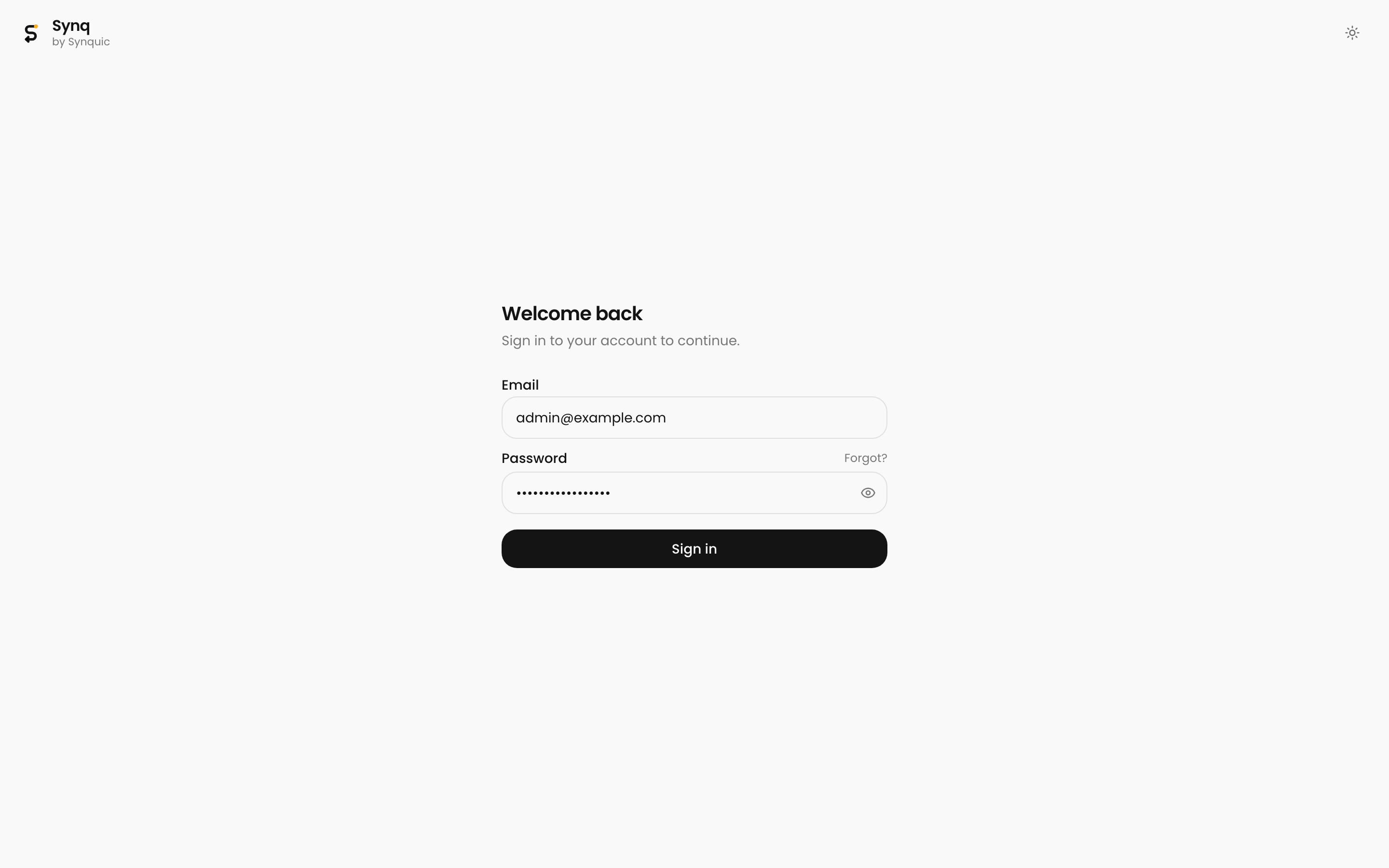
Open the panel (the address the installer printed), sign in as the admin and deploy your first app. Continue with the documentation or the installation guide.